Explore the feasibility of your order with CohortExplorer
CohortExplorer is the new interactive dashboard in your Openda account for fast imaging data cohort feasibility. Behind it, our team uses CohortAgent, Segmed's AI agent.
Getting Started
Latest Update:
November 23, 2026
CohortExplorer is the new interactive dashboard in your Openda account for fast imaging data cohort feasibility. Behind it, our team uses CohortAgent, Segmed's AI agent.
When you send us your requirements, CohortAgent checks each one against our data step by step, including the criteria that only appear in radiology reports, and our team reviews each step before sharing the results with you.
You review your assessment in CohortExplorer. It shows how many patients qualify for your new project order and how each requirement was checked, updates as you test changes, and lets you order the dataset from the same page.
How CohortAgent checks your requirements
1. It filters our imaging data on the structured requirements in your Project Feasibility Inquiry, such as modality and body part.
2. It reads each candidate radiology report and available DICOM headers for the criteria, such as a diagnosis, prior surgery or metal hardware. Reports are de-identified in accordance with HIPAA requirements.
3. Our team reviews the results before sharing the CohortExplorer with you.
Steps 1 and 2 run one after the other, and our team reviews each step before the next one runs. Technical checks on the images, such as slice thickness or field strength, run after the report screening. We check what we can on the image headers of the studies we hold, and the rest after retrieval. These checks aren't in the counts yet.
Request an assessment
1. Fill in the Project Feasibility Inquiry form at segmed.ai/solutions/project-feasibility-inquiry.
2. Describe what you need: the type of imaging, the patients and findings you're looking for, and how many patients your project needs.
3. We may contact you to clarify a requirement. Our team then runs the assessment with CohortAgent and shares it in CohortExplorer, on your project in Openda.
4. You get an email when your CohortExplorer panel, the assessment, is ready.
New to Segmed?
If you send the Project Feasibility Inquiry and don't have an Openda account yet, we'll create one for you so you can see your assessment in CohortExplorer.
Already working with Segmed?
Ask your Segmed representative for an assessment on a new or existing project or, if you're ready, submit your requirements here: segmed.ai/solutions/project-feasibility-inquiry.
Note: CohortAgent is currently used internally by the Segmed team. It will be available to external users soon. A conversational version of the Project Feasibility Inquiry in Openda is planned for 2027. We'll update this article when it's available.
Find your assessment
1. Sign in to Openda at openda.segmed.ai.
2. Open your Project.
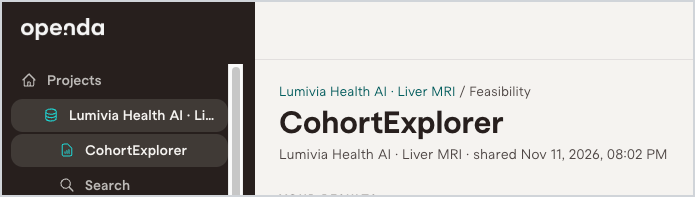
3. In the left menu, under your project, select CohortExplorer.
The dashboard is titled CohortExplorer. The date under the title shows when the assessment was shared with you.
CohortExplorer: Check your results
The top of the page answers the main question: can Segmed fill your order?
• Patients for your order shows how many patients we can deliver against your target, for example 1,000 of 1,000.
• Below it, you see how many qualifying patients and studies we hold in total, and how many more than you need.
• Who they are shows the make-up of the patients Segmed would pick for your order, such as age, race, ethnicity and scanner maker.

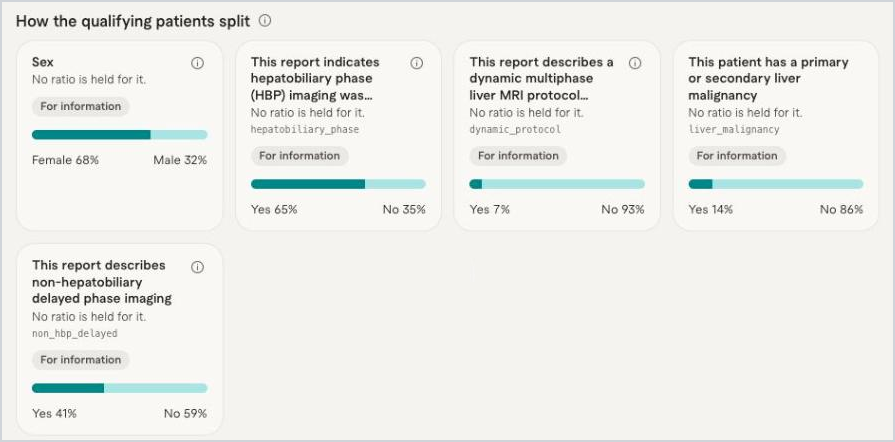
See how the qualifying patients split
If you asked for a balance, such as 50 : 50 by sex or between left and right side, each card shows whether we have enough patients for it: Enough for 50:50, or how many you're short, for example Short by 89 for 50:50.
If you didn't ask for a balance, the card says No ratio is held for it and is labeled For information. It shows the split of the qualifying patients for reference.
Review the patient and study profile
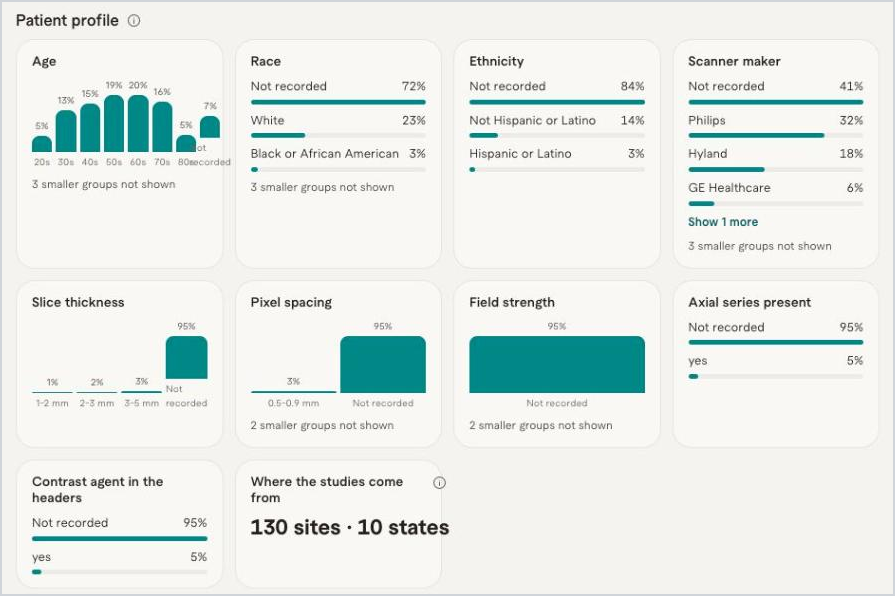
See the make-up of the qualifying patients: age, race, ethnicity and scanner maker, plus study details such as slice thickness, pixel spacing and field strength. Where the studies come from shows how many sites and states they come from.
• Not recorded means the source data doesn't include that detail for those patients.
• The profile covers all qualifying patients. Who they are, on the results card, covers only the patients Segmed would pick for your order, so the percentages can differ.
• Facilities are never shown by name. Where the studies come from shows only how many sites and states.
See how we got to your number
How we got to shows each step in order and how many patients remain after it, from the reports we could read to the patients who qualify. What loosening a requirement would add shows how many patients you'd gain by relaxing each one, which helps when a requirement is hard to meet.

Explore different scenarios
Test other requirements and see how your results change. Your order stays exactly as Segmed prepared it, and nothing you change is saved.
1. Select Adjust requirements.
2. Depending on your order, you can adjust Patients you need, Balance, the criteria Read from each report, Patients, and Scanners. Your results update as you go.
3. To propose the change, select Send to Segmed at the bottom of the panel, or export a PDF of the scenario for your Segmed representative.
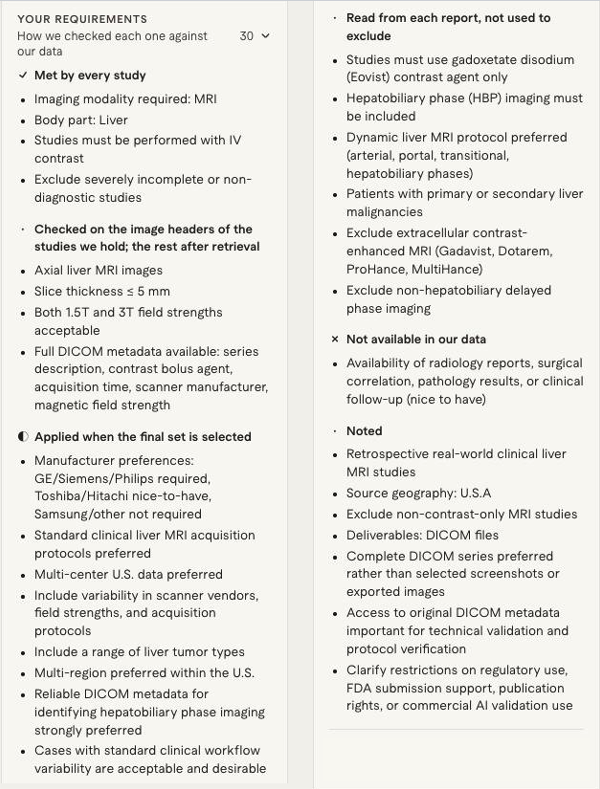
Review how we checked each requirement
Your requirements lists every requirement from your request and how CohortAgent checked it against our data:
• Met by every study: requirements every qualifying study already meets, such as modality or body part.
• Read from each report: criteria that only appear in the radiology report, such as a diagnosis or prior surgery. CohortAgent answers yes, no or not mentioned for each report. If a group is labeled not used to exclude, its answers are shown for information and don't change your count.
• Checked on the image headers: technical criteria, such as slice thickness or field strength. We check them on the image headers of the studies we hold, and the rest after retrieval.
• Applied when the final set is selected: preferences, such as an even spread across groups.
• Not available in our data: requirements our data doesn't include, such as pathology results. They appear as exceptions on the results card.
• Noted: items such as delivery format or licensing terms, which we handle with you directly.
Next steps
• Order this dataset when the cohort fits. Your order is built from the cohort in this assessment, so nothing starts over.
• Export as PDF to share the results, or a scenario you built, with your team.
• Contact a Segmed representative with questions or to change your order.
Frequently Asked Questions - F.A.Q.
What's the difference between CohortExplorer and CohortAgent?
CohortExplorer is the interactive dashboard in your Openda project. Behind it, our team runs CohortAgent, our AI agent, to check your requirements against our data, and reviews each step. In CohortExplorer, you review those results, explore scenarios and order your dataset.
Are these numbers final?
No. They reflect our data on the date the assessment was shared. Checks listed under Next step aren't in the counts yet and can change the final number.
If I change a requirement on my CohortExplorer, does my order change?
No. Nothing you change in the section Adjust requirements is saved. Select Send to Segmed in the Adjust requirements panel, or export the scenario as a PDF and send it to your Segmed representative.
What happens after I order?
Your order is built from the cohort in this CohortExplorer assessment. We select the final set, run the checks listed under Next step, and prepare your delivery.
Why can't I change some requirements?
Segmed sets which requirements you can adjust for each order. To change any other, contact your Segmed representative.
Who can see our assessment or CohortExplorer?
Only the requester of the project assessment inquiry.
Will the numbers update?
The panel CohortExplorer shows the assessment as it was when shared. Ask your Segmed representative for an update.
Need help?
Contact your Segmed representative, or write to support@segmed.ai.


